
Setting Up Ollama
Configure local AI models for StashCanvas
What is Ollama?
Ollama is a tool that lets you run large language models (LLMs) locally on your computer. This means you can use AI features in StashCanvas without sending data to external servers, giving you more privacy and control.
Installation
macOS
brew install ollamaLinux
curl -fsSL https://ollama.com/install.sh | shWindows
Download the installer from the official website.
Downloading Models
After installing Ollama, you need to download a model. We recommend starting with Qwen 3.5:
ollama pull qwen3.5:latestOther popular options include:
ollama pull llama3.1ollama pull mistralollama pull codellama
Required Settings
For StashCanvas to work with Ollama, you need to configure two settings in the Ollama app:
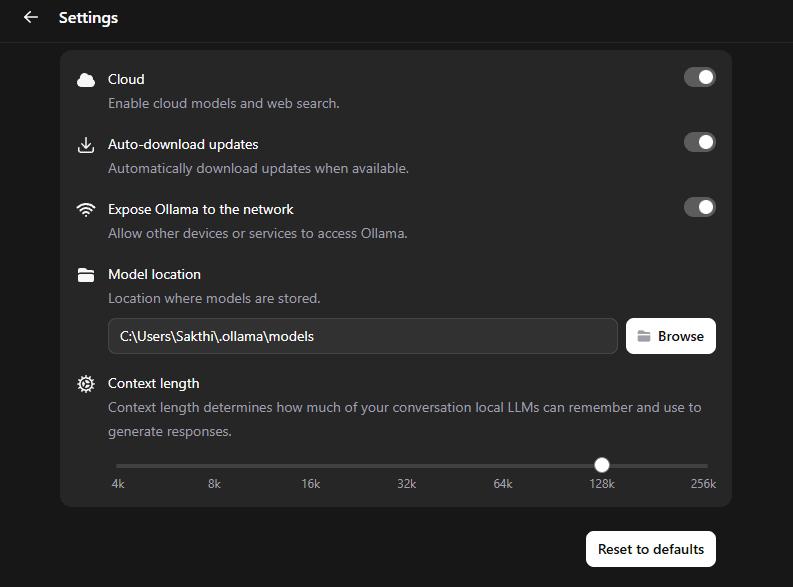
- Context Size (128k): Set the context size to 128k (or 64k if your PC is weaker) in the Ollama settings. This allows the AI to handle larger conversations and more context.
- Expose to Network: Enable "Expose to Network" or "Allow connections from other devices" in Ollama settings. This allows StashCanvas running on different ports or devices to connect to your Ollama instance.
Configuring CORS
To allow StashCanvas to communicate with Ollama, you need to configure the OLLAMA_ORIGINS environment variable.
Windows
- Open Start Menu and search for "Environment Variables"
- Click "Environment Variables..."
- Under User variables, click New
- Set Variable name:
OLLAMA_ORIGINS - Set Variable value:
*(or the specific URL likehttps://stashcanvas.com) - Click OK to save
- Important: Right-click the Ollama icon in your system tray and select "Quit Ollama"
- Restart Ollama from the Start Menu
macOS
If running as a desktop app:
launchctl setenv OLLAMA_ORIGINS "*"Quit the Ollama app from the menu bar and restart it.
If running via terminal:
OLLAMA_ORIGINS="*" ollama serveLinux (systemd)
sudo systemctl edit ollama.serviceAdd under [Service]:
Environment="OLLAMA_ORIGINS=*"sudo systemctl daemon-reload && sudo systemctl restart ollamaUsing with StashCanvas
Once Ollama is installed and running, you can use it in StashCanvas by adding an AI Chat node to your canvas. The AI will automatically detect your local Ollama instance and use it for generating responses.
Troubleshooting
Ollama not starting
Try running ollama serve in a terminal.
Model not found
Make sure you've downloaded the model with ollama pull modelname.
Connection refused
Check that Ollama is running on port 11434. You can verify with curl http://localhost:11434.